
2.4 GHz-Only Barcode Scanners and Printers: How to Keep Them Alive on a 5 GHz Office Network
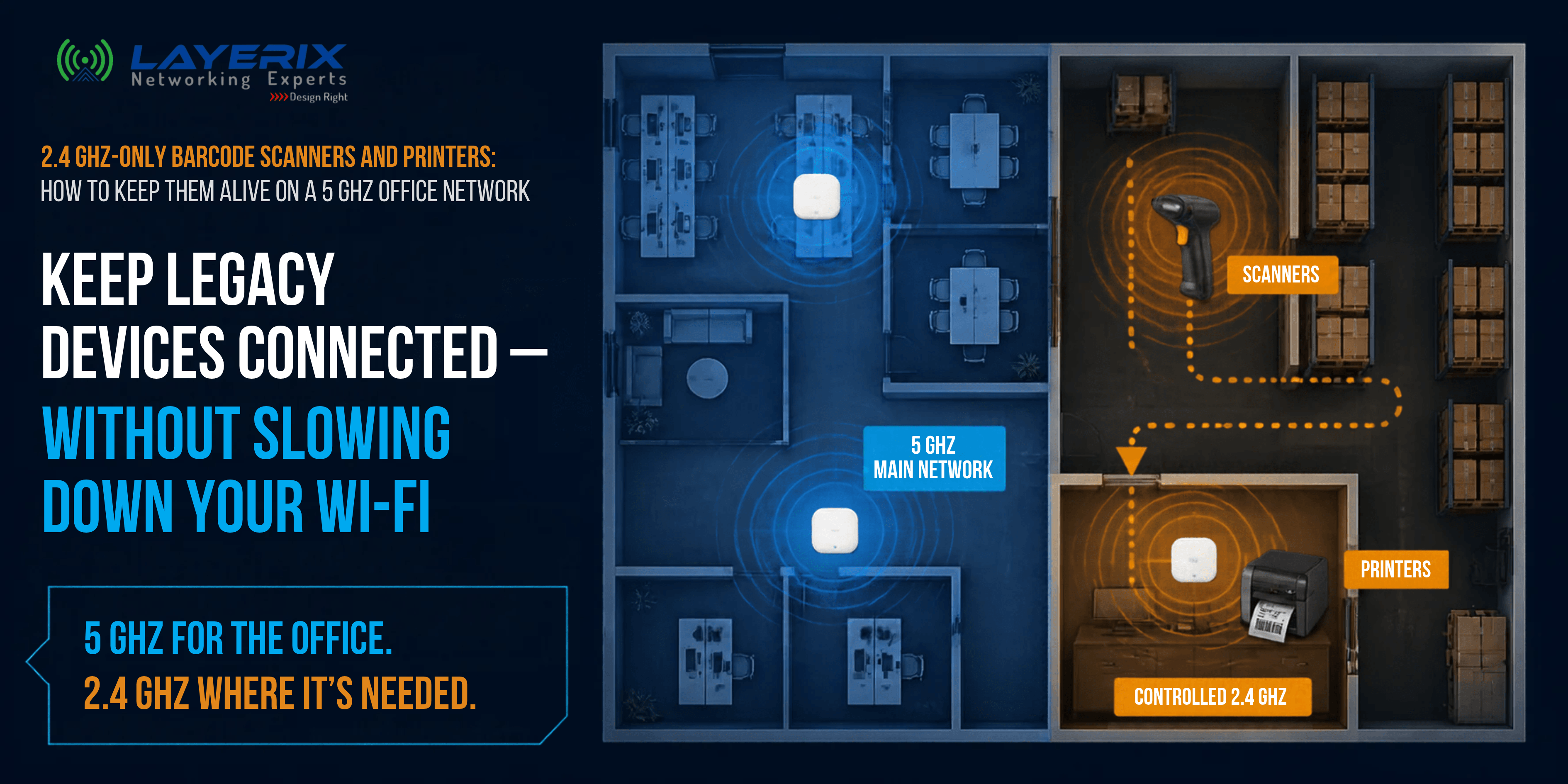
It's 6:10 p.m. and the warehouse supervisor is on the phone. “The scanners stopped connecting. We can't dispatch.”
You check the network. Everything on 5 GHz is perfect. Laptops, phones, video calls, all smooth. That's the problem. Somewhere in the migration, the 2.4 GHz radios in the stockroom were switched off, and the scanners never spoke anything else.
In Part 1, we made 5 GHz the star of the office and left this problem hanging. Here is the twist: the answer isn't to abandon 5 GHz, and it isn't to leave 2.4 GHz on everywhere either.
The answer is to give 2.4 GHz a small, controlled home.
Step 1: Catch the Culprits
You can't fix what you can't see. Open your controller or access point client list and filter by band. Any device that connects on 2.4 GHz and never shows up on 5 GHz goes on your legacy list.
What is it?
Scanner, label printer, billing machine, old IP phone, sensor. Note the model.
Where is it?
Record the floor and the nearest access point. This decides which radios stay on.
Does it move?
This is the most important question. Fixed and mobile devices need different fixes.
Step 2: Fixed or Mobile?
Fixed devices
Printers, label printers, billing machines.
Best fix: run a network cable. A device on Ethernet is no longer a Wi-Fi problem at all. If you can't, only the nearest one or two access points need 2.4 GHz on.
Mobile devices
Handheld barcode scanners that walk around the warehouse.
Best fix: cover the whole zone. A scanner needs continuous 2.4 GHz coverage along its full route, not just at one spot.
Step 3: Draw the Zone Map
Here is what a typical office looks like when 2.4 GHz has a small home and 5 GHz covers everything.
| Area | 2.4 GHz | 5 GHz |
|---|---|---|
| Warehouse, stockroom, dispatch | ON, full route coverage | ON |
| Billing counter, print room | ON, nearest AP only | ON |
| Open-plan desks | OFF | ON |
| Meeting rooms, conference halls | OFF | ON |
| Corridors, cafeteria | OFF | ON |
In many offices only a fraction of access points need their 2.4 GHz radio on. Your site survey gives the real number.
Step 4: Five Rules for the 2.4 GHz Radios That Stay On
Channels 1, 6 and 11 only, at 20 MHz
India allows channels 1 to 13 on 2.4 GHz, but stick to the clean three from Part 1. Some older devices are built for channels 1 to 11 only, so this keeps them happy too.
Turn the power down
A smaller 2.4 GHz cell lets you reuse the three channels without access points fighting each other. Keep 2.4 GHz power lower than 5 GHz.
Give legacy devices their own SSID and VLAN
One old scanner shouldn't force your main network to weaker settings. A separate SSID on its own VLAN keeps the legacy devices contained.
Consider disabling the slowest data rates
Very slow rates make old traffic hog airtime. Test first, because some very old scanners need them.
Check what security the device supports
Many older scanners handle WPA2 but not WPA3, and may not support fast roaming. Test before you lock the SSID down.
Step 5: The Walk Test Everyone Skips
Take the scanner and physically walk its route with a survey tool running. This is where most failures show up, and it takes less than an hour.
Does the signal stay strong along the whole route, including corners and racks?
Are two 2.4 GHz access points on the same channel near each other?
Does the scanner roam to the next access point, or cling to a distant one?
Three Traps That Catch Most Teams
“Too many radios switched off”
The most common failure. With 2.4 GHz off in too many places, scanners cling to a faraway access point or drop out mid-scan, and the warehouse team calls you at 6 p.m.
“Staff laptops on the legacy SSID”
Hide the legacy SSID from staff, or use band steering so dual-band devices land on 5 GHz.
“Never checking again”
After go-live, review the client list again to catch any device that dropped off the network.
These are illustrative scenarios, not specific client case studies.
The Long-Term Plan: Shrink the 2.4 GHz Zone
Every 2.4 GHz-only device you retire lets you switch off another radio. Budget for replacing the oldest ones, even if it's one scanner a quarter.
Most radios on, many legacy devices
Move fixed devices to Ethernet
Replace the oldest scanners
2.4 GHz only where truly needed
The bar shows how much of the 2.4 GHz footprint remains. The timeline is an example, not a fixed schedule.
Conclusion
Across both parts, the story comes down to four points:
✅ 2.4 GHz gives you 3 clean channels. 5 GHz gives Indian offices about 24.
✅ Make 5 GHz your main band for laptops, phones and meeting rooms.
✅ Keep 2.4 GHz only where legacy devices need it: channels 1, 6, 11, 20 MHz, low power, separate SSID.
✅ Survey first, walk-test after, and retire old devices over time.
Good office Wi-Fi isn't about choosing one band. It's about giving each band the right job, and giving that stubborn barcode scanner a home it can actually reach.
Struggling With Legacy Devices on Your Wi-Fi?
Layerix can survey your site, map where 2.4 GHz is truly needed, and design a channel plan that works for both your new and old devices.
Naveen Kumar J
Assistant Manager, Technology (Application Development) & Digital Marketing, Layerix Networking Experts.
Ready to optimize your network?
Contact Layerix Networks for expert IT infrastructure and networking solutions.